We UniFi protect what matters!
Ubiquiti Installations — Brisbane’s Dedicated UniFi Protect Specialists.
Ubiquiti & UniFi Installation Brisbane — UniFi Protect Specialists
✅ Brisbane UniFi Experts – Specialising in Ubiquiti installation Brisbane wide. UniFi Protect cameras, access points, and complete network solutions for homes and businesses.
✅ Protected Investment – 5-year warranty on all UniFi hardware. 5-year workmanship guarantee. 12 months remote support for commercial clients.
✅ Certified & Licensed security installers (#42489)
✅ Transparent UniFi Installation Pricing – Fixed quotes for every Ubiquiti install, no hidden costs.
✅ Certified & Trusted – Licensed UniFi installation specialists with ⭐⭐⭐⭐⭐ reviews from Brisbane businesses.
✅ UniFi Camera & Network Specialists – From UniFi Protect cameras to Dream Machine setups, we handle the entire Ubiquiti ecosystem.
Need a Quote? I’m Here to Help.
Whether it’s for cameras, alarms, or anything in between — send through your details below and I’ll personally get back to you with advice, pricing, or a quick call. Prefer to reach out directly? Call me on 0412 853 618 or email [email protected]. No pushy sales, just solid service.
Ubiquiti & UniFi Protect Installation Brisbane
UniFi Protect Camera Installation
UniFi Access Point & WiFi Solutions
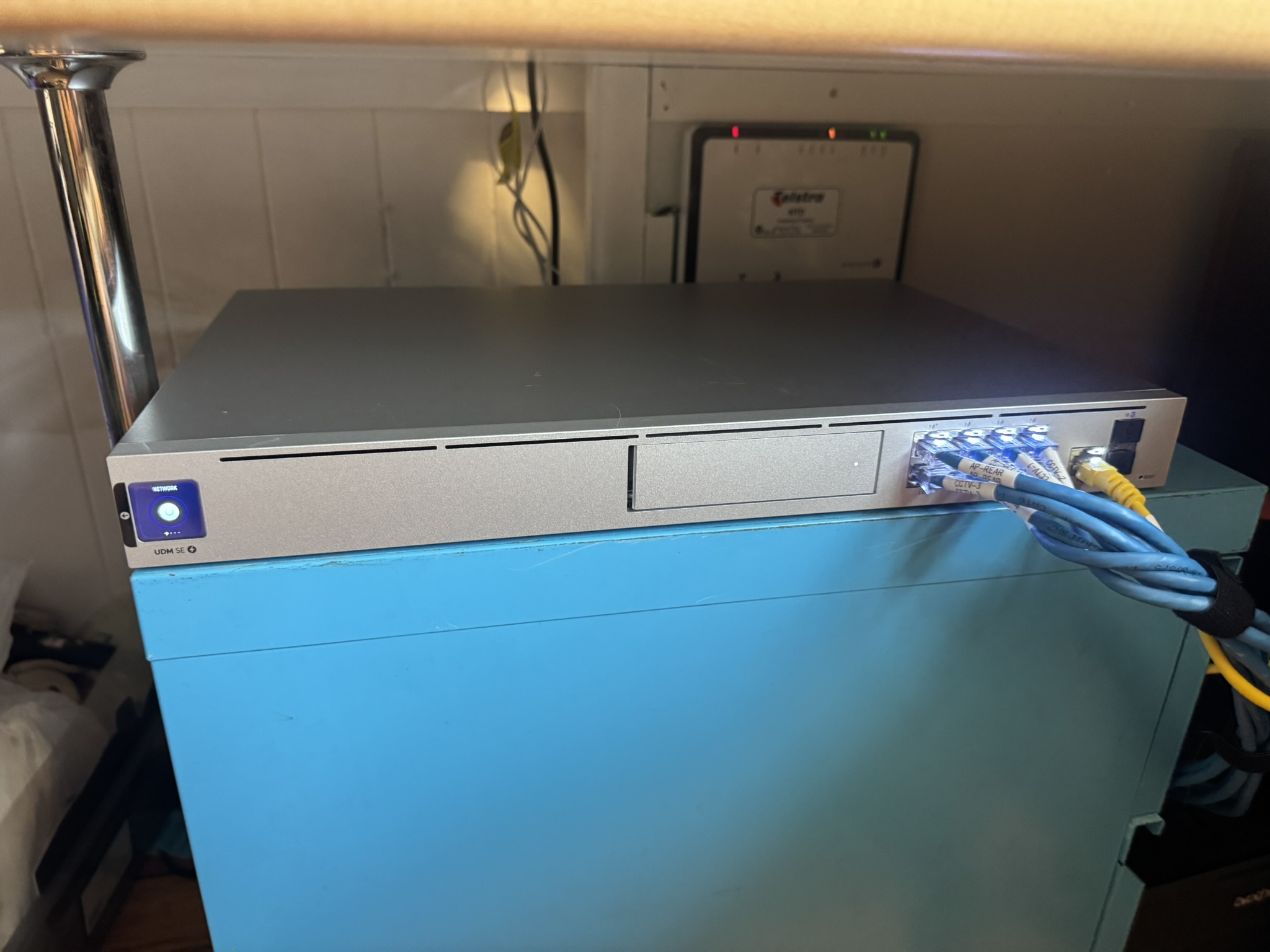
UniFi Dream Machine & Cloud Gateway
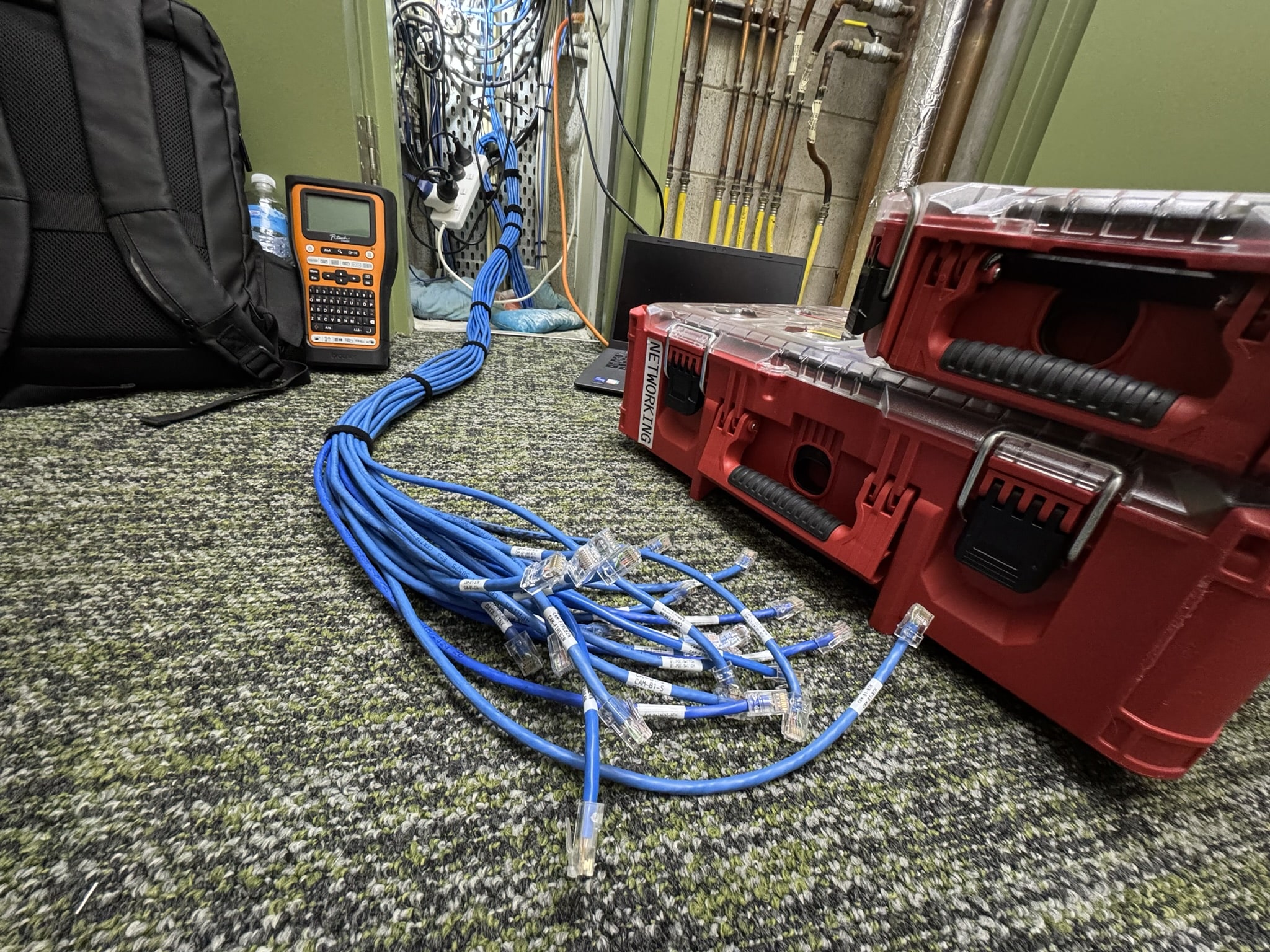
UniFi Switch & PoE Installation
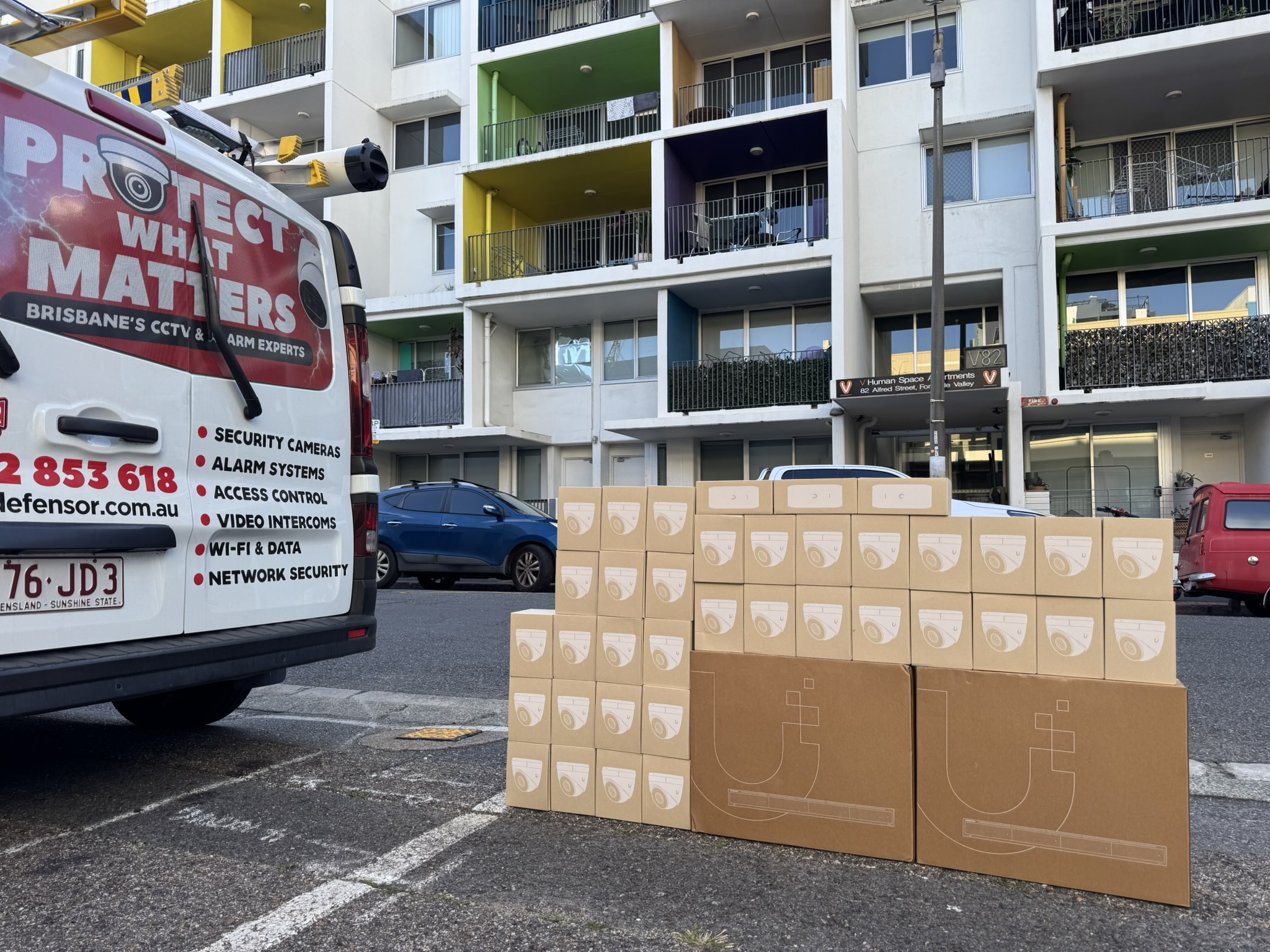
UniFi Doorbell & NVR Systems
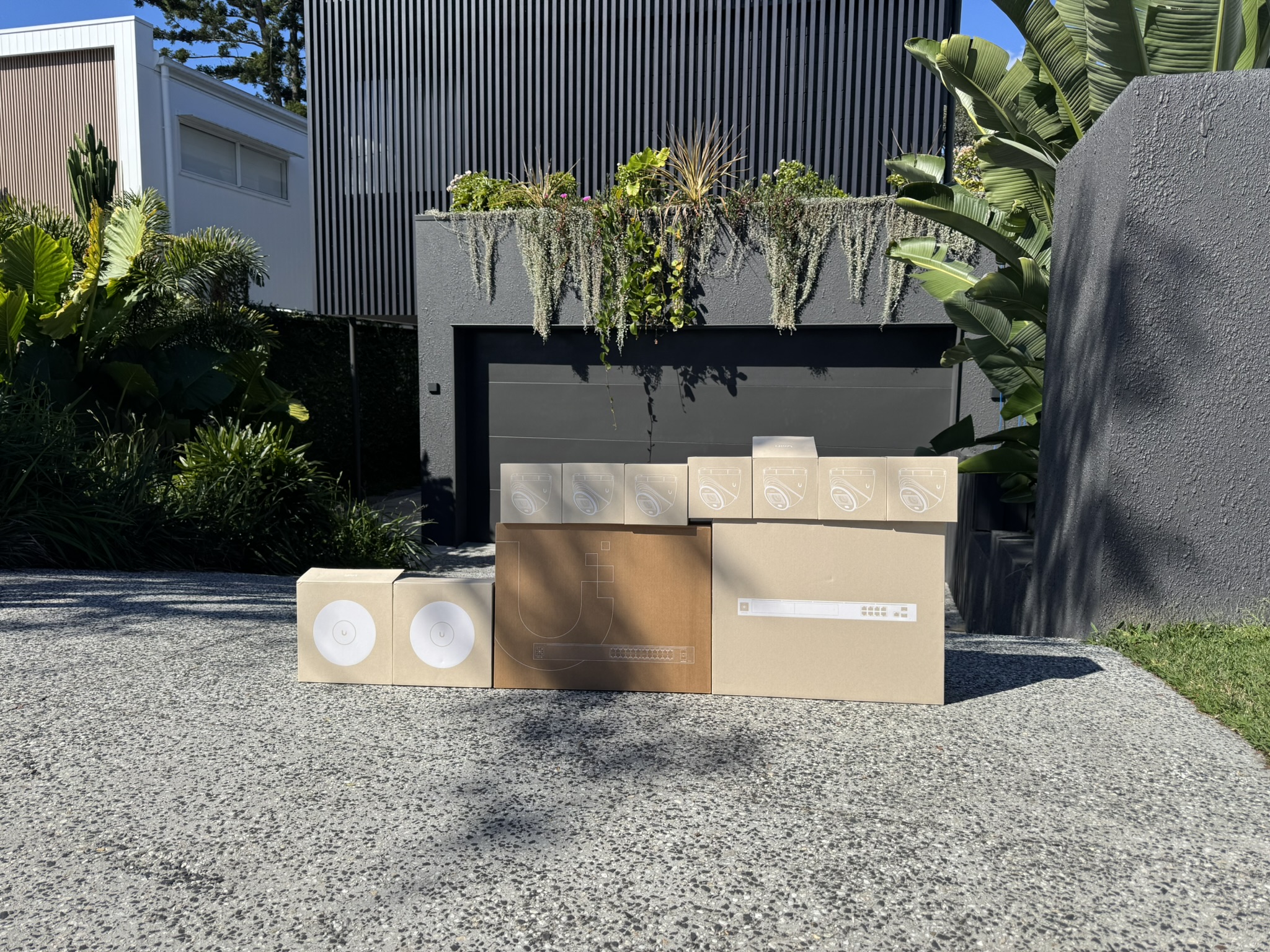
UniFi Access Control & Intercom
Why Choose Defensor for Ubiquiti & UniFi Network Installation in Brisbane?

Brisbane’s Certified Ubiquiti & UniFi Installation Experts
Complete UniFi Installation Services
Licensed Ubiquiti Installers Brisbane Trusts
We’re Certified, Licenced & Highly Reviewed
100+ ⭐⭐⭐⭐⭐ Google reviews from satisfied customers who love our security camera installation and alarm solutions.
Transparent UniFi Installation Pricing
IT & Security Experts
Frequently Asked Questions About CCTV & Alarm Installation
What is UniFi Protect and how does it work?
Short Answer: UniFi Protect is Ubiquiti’s professional surveillance platform combining UniFi cameras, a UniFi NVR for local storage, and a mobile app for remote viewing. Everything runs on your local network with no mandatory monthly fees.
Longer Explanation:
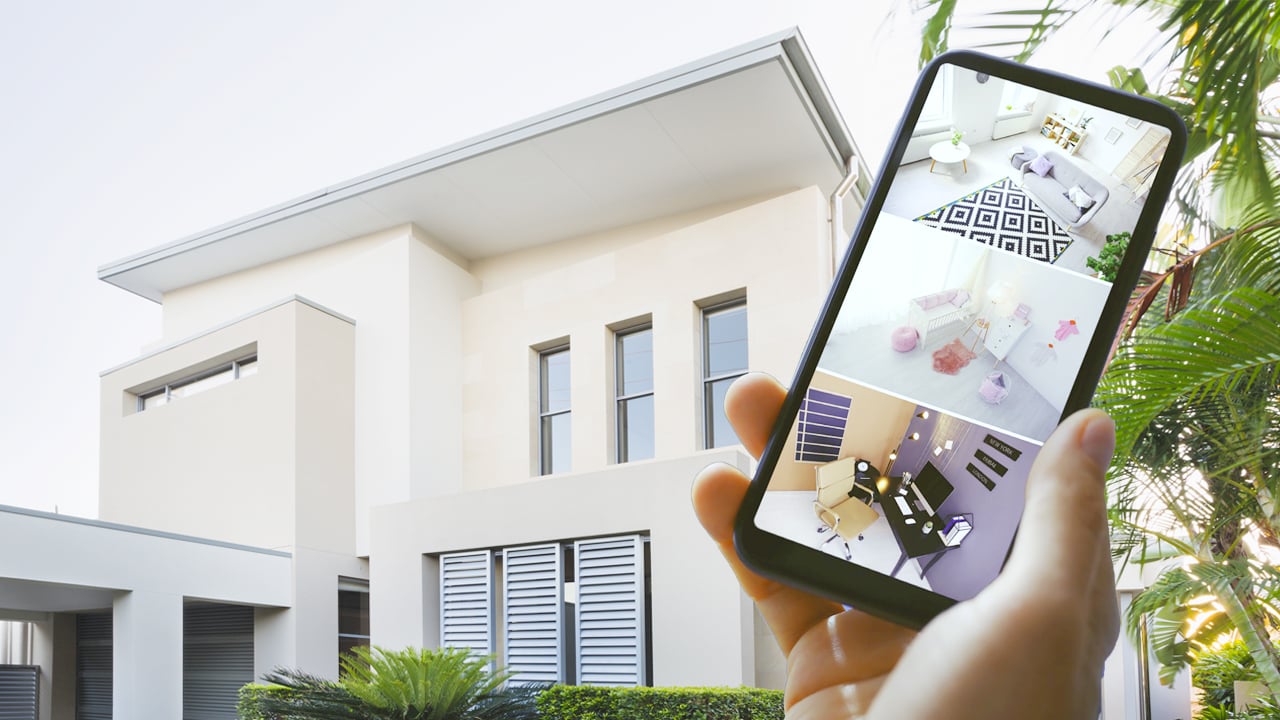
Unlike subscription-based camera systems, UniFi Protect stores all footage locally on a UniFi NVR or Cloud Gateway with built-in storage. You access live feeds and recordings through the UniFi Protect app on your phone, tablet, or computer.
The system is fully self-contained. Once installed, you own it outright. No cloud fees, no subscriptions, no third-party access to your footage. This makes UniFi Protect popular with Brisbane homeowners and businesses who want complete control over their security system.
UniFi Protect cameras range from indoor domes to outdoor bullets, doorbells, and floodlight cameras. All integrate seamlessly through a single app.
How much does UniFi Protect installation cost in Brisbane?
Short Answer: A complete UniFi Protect installation in Brisbane typically starts from $3,500 for a basic home setup. Commercial installations range from $5,000 to $15,000 or more depending on the number of UniFi cameras and network requirements.
Longer Explanation:
What affects the cost:
Number of UniFi Protect cameras (2 cameras vs 8 cameras)
Camera models (standard G4 Bullet vs premium G5 Pro)
Whether you need a standalone UniFi NVR or a Cloud Gateway with built-in storage
Cabling complexity (single storey home vs multi-level warehouse)
Network upgrades (new UniFi switches, access points, or routers)
What’s included in a Defensor quote:
Every Ubiquiti installation quote includes equipment, professional installation, network configuration, UniFi Protect app setup, and training. No hidden fees.
Insurance benefits:
Many insurers offer 5 to 10% premium discounts for properties with professionally installed camera systems. Your UniFi Protect investment may partially pay for itself over time.
How many UniFi Protect cameras do I need?
Short Answer: Most Brisbane homes need 3 to 6 UniFi Protect cameras. Small businesses typically require 4 to 8 cameras. Larger commercial sites may need 12 or more.
Longer Explanation:
Home essentials:
Front door (captures visitors and deliveries)
Back door (common entry point for intruders)
Driveway or garage (vehicle and pedestrian traffic)
Side gates (if accessible)
Business priorities:
All entry and exit points
Point of sale and cash handling areas
Stock rooms and high-value inventory
Car parks and external perimeters
Reception and waiting areas
Start with your most vulnerable points. UniFi Protect systems scale easily, so you can add more cameras later as your UniFi NVR supports additional channels.
When we visit for a quote, we’ll map out your property and recommend the optimal number and placement of UniFi cameras for complete coverage.
Can UniFi Protect cameras see at night?
Short Answer: Yes. All UniFi Protect cameras include infrared night vision for clear footage in complete darkness. Range varies by model, from 9 metres on entry-level cameras to 25 metres on premium models.
Longer Explanation:
Infrared night vision:
UniFi Protect cameras use infrared LEDs that illuminate the scene invisibly to the human eye. You get clear black-and-white footage even in zero light conditions.
Night vision range by model:
G5 Bullet: 9 metres (30 feet)
G5 Pro: 25 metres (82 feet)
G4 Dome: 15 metres (50 feet)
Enhanced low-light performance:
Premium UniFi cameras like the G5 Pro feature larger sensors that capture more light. In areas with some ambient lighting (street lights, porch lights), these cameras produce better footage before switching to infrared mode.
Can UniFi Protect cameras handle Brisbane weather?
Short Answer: Yes. UniFi Protect outdoor cameras are rated IP65 or higher, meaning they’re fully protected against dust and water jets. They’re built to handle Queensland’s heat, storms, and humidity.
Longer Explanation:
Brisbane’s climate throws everything at outdoor cameras: scorching summer sun, sudden storms, humidity, and the occasional hail. UniFi Protect outdoor cameras are designed for exactly these conditions.
Weather resistance features:
IP65/IP66 ratings seal out dust and rain
Operating temperature ranges from -10°C to 50°C Short Answer: Yes. UniFi Protect outdoor cameras are rated IP65 or higher, meaning they’re fully protected against dust and water jets. They’re built to handle Queensland’s heat, storms, and humidity.
Longer Explanation:
Brisbane’s climate throws everything at outdoor cameras: scorching summer sun, sudden storms, humidity, and the occasional hail. UniFi Protect outdoor cameras are designed for exactly these conditions.
Weather resistance features:
IP65/IP66 ratings seal out dust and rain
Operating temperature ranges from -10°C to 50°C
UV-resistant housings prevent sun damage
Corrosion-resistant materials for coastal properties
Installation matters:
Even the best UniFi camera can fail if installed poorly. We mount cameras under eaves where possible, use weatherproof cable glands, and seal all connection points. With decades of Brisbane installations behind us, we know how to prevent water ingress.
UV-resistant housings prevent sun damage
Corrosion-resistant materials for coastal properties
Installation matters:
Even the best UniFi camera can fail if installed poorly. We mount cameras under eaves where possible, use weatherproof cable glands, and seal all connection points. With decades of Brisbane installations behind us, we know how to prevent water ingress.
What is a UniFi NVR and do I need one?
Short Answer: A UniFi NVR (Network Video Recorder) is the storage device that records and stores footage from your UniFi Protect cameras. You need either a dedicated UniFi NVR or a UniFi Cloud Gateway with built-in storage to run UniFi Protect.
Longer Explanation:
UniFi NVR options:
UniFi NVR Instant: Dedicated recording device with 1TB to 24TB storage
UniFi NVR Pro: Higher capacity for larger installations
UniFi Cloud Gateway Ultra/Max: Combines router, firewall, and NVR in one device
UniFi Dream Machine Pro: All-in-one gateway with NVR functionality
How much storage do you need:
1TB: Approximately 5 to 7 days of footage (4 cameras)
2TB: Approximately 10 to 14 days of footage (4 cameras)
4TB+: 30+ days of footage for most home setups
Our recommendation:
For most Brisbane homes, a UniFi UNVR Instant with 2TB or 8TB storage is the most cost-effective solution. It handles your cameras, and security in one compact device.
Does UniFi have a doorbell camera?
Short Answer: Yes. UniFi offers the G4 Doorbell and G4 Doorbell Pro, both with 24/7 recording, two-way audio, and zero subscription fees. The Pro model adds a dedicated package detection camera and programmable display.
Longer Explanation:
G4 Doorbell
The entry-level UniFi Doorbell features a 5MP camera, infrared night vision, two-way audio, and a small display screen. It records continuously to your UniFi NVR so you never miss a visitor or delivery.
G4 Doorbell Pro
The Pro model is where UniFi pulls ahead of Ring and Nest:
Dual cameras: The main camera captures visitors while a second downward-facing 8MP camera watches for packages. You’ll know exactly when a delivery arrives and if it’s still there.
Programmable display: The colour LCD screen shows custom messages like “Leave packages at side gate” or holiday greetings. Upload your own images or animations.
NFC and fingerprint reader: Scan a card or your fingerprint to trigger smart lock automations. Walk up, scan, door unlocks.
Package alerts: Get notified the moment a parcel is dropped off, not minutes later when the courier is already gone.
Why UniFi beats Ring and Nest:
Ring and Nest record only when motion triggers, often missing the first few seconds. UniFi records 24/7 so you can scroll back through continuous footage with no gaps.
Ring charges $6/month for video history. That’s $360 over five years on top of your doorbell cost. UniFi has no subscriptions, ever.
Your footage stays on your local NVR, not on Amazon’s or Google’s servers. You own your data.
Coming soon:
Ubiquiti has announced new G6 doorbells for 2025 with 12MP sensors and deeper integration with UniFi Access for commercial door control.
What is a UniFi access point and do I need one?
Short Answer: A UniFi access point (UniFi AP) replaces or extends your WiFi beyond what a standard router can do. If you have dead zones, buffering during video calls, or more than 20 devices fighting for bandwidth, a UniFi AP solves those problems.
Longer Explanation:
Your router isn’t designed for serious WiFi
The router your ISP gave you (or even a decent retail router) has WiFi built in as an afterthought. It sits in a corner, fights through walls, and struggles when the whole family streams Netflix while you’re on a Zoom call.
UniFi access points are purpose-built for WiFi. Mount one on the ceiling in a central location and it broadcasts signal downward and outward, covering your home properly. Add a second AP and your devices roam seamlessly between them without dropping.
Current UniFi access point range:
WiFi 6 (U6 series)
U6+: Entry-level, covers most apartments and small homes. Around $99.
U6 Pro: Mid-range workhorse for larger homes. Handles 300+ devices. Around $159.
U6 Long Range: Extended coverage for big properties.
U6 Enterprise: WiFi 6E with 6GHz band for interference-free performance.
WiFi 7 (U7 series)
U7 Lite: Budget WiFi 7 entry point. Same price as U6+ but newer tech.
U7 Pro: Current flagship. 6GHz band, 2.5Gbps ethernet port, supports 300+ devices. Around $189.
U7 Pro Max: Adds dedicated spectral analysis for crowded WiFi environments.
U7 Outdoor: IP65 rated for patios, sheds, and pool areas.
Special purpose models:
U6 In-Wall: Mounts in a standard wall box, includes ethernet ports for wired devices. Perfect for hotel rooms or home offices.
U6 Mesh: Outdoor-rated for extending coverage to garages and outbuildings.
WiFi 6 vs WiFi 7: Which do you need?
WiFi 6 (U6 series) handles everything most homes need right now. It’s mature, stable, and affordable.
WiFi 7 (U7 series) adds the 6GHz band, which is less congested than 2.4GHz and 5GHz. If you live in an apartment complex with dozens of competing networks, or you want to future-proof for the next 5-10 years, WiFi 7 is worth the modest premium.
Why UniFi instead of mesh systems like Google or Eero?
Consumer mesh systems are designed for simplicity. UniFi is designed for performance. You get proper ceiling mounting, wired backhaul options, VLAN support for separating guest and IoT devices, and zero subscription fees. One network that handles your cameras, computers, and smart home without compromise.
How many UniFi access points do I need?
Short Answer: Most Brisbane homes need 1-2 UniFi access points. A single AP covers around 150-200 square metres in open conditions, but double brick walls, concrete floors, and metal roofing reduce that significantly.
Longer Explanation:
Typical Brisbane homes:
Apartment or townhouse (under 120sqm): 1 access point, centrally located
3-4 bedroom single storey (150-250sqm): 1-2 access points
Large single storey (250sqm+): 2-3 access points
Two storey home: Minimum 2, often 3 (signal doesn’t travel well between floors)
Detached garage, granny flat, or pool house: Add 1 outdoor or mesh AP per outbuilding
What kills WiFi in Brisbane homes:
Not all walls are equal. Plasterboard barely slows WiFi. But many Brisbane homes have:
Double brick: Cuts signal strength by half or more
Concrete slab between floors: Almost blocks signal entirely
Foil-backed insulation: Reflects signal like a mirror
Colorbond or metal roofing: Creates interference from above
A 200sqm home with plasterboard walls might need 1 AP. The same size home with double brick internals might need 3.
Businesses:
Small office (under 150sqm): 1-2 access points
Medium office (150-400sqm): 2-4 access points
Open warehouse: Fewer APs, positioned for line-of-sight
Offices with meeting rooms: More APs to handle video calls in enclosed spaces
Device count matters too:
UniFi APs handle 200-300+ devices on paper, but performance drops when everyone’s on Zoom simultaneously. For heavy video conferencing or high-density environments, plan for more access points than the square metres alone suggest.
Every building is different. When we quote, we walk through your property and identify exactly where access points should go for complete coverage. No guessing, no dead zones.
Can UniFi fix my WiFi dead zones?
Short Answer: Yes. UniFi access points are designed to eliminate dead zones by providing proper coverage from multiple points throughout your property. Unlike consumer WiFi extenders that repeat a weak signal, UniFi APs connect via ethernet cable and deliver full-speed WiFi wherever you need it.
Longer Explanation:
Why your current WiFi has dead zones:
Your router sits in one spot, usually wherever the NBN box is installed, which is rarely the centre of your home. WiFi signal weakens with distance and gets blocked by walls, floors, and metal objects. The result: strong signal near the router, weak or nothing in the back bedroom, garage, or outdoor areas.
Why consumer mesh systems fall short:
Google Wifi, Eero, and similar mesh systems try to solve this by repeating the signal wirelessly. The problem is each wireless “hop” between units cuts your speed. By the time signal reaches the far end of your house, you might have coverage but the speed is halved or worse.
How UniFi solves it properly:
UniFi access points connect back to your network with ethernet cable, not wireless repeating. Each AP delivers full speed, not degraded signal. Position two or three UniFi APs across your property and you have genuine coverage everywhere.
Your devices also roam seamlessly between access points. Walk from the kitchen to the home office while on a video call and your connection follows you without dropping. UniFi supports fast roaming protocols that hand off your device intelligently between APs.
The 6GHz advantage:
If you live in an apartment block or dense suburb, your 2.4GHz and 5GHz bands are probably congested with neighbours’ networks fighting for the same channels. UniFi WiFi 7 access points (U7 series) add the 6GHz band, which is virtually empty. Less interference means faster, more reliable connections.
UniFi mesh when you need it:
UniFi does support wireless mesh for situations where running cable isn’t possible, like heritage buildings or temporary setups. But we always recommend wired backhaul where feasible. Cable beats wireless every time.
What is UniFi Protect and how does it work?
Short Answer: UniFi Protect is Ubiquiti’s professional security camera platform. It includes UniFi cameras, doorbells, and a network video recorder (NVR) that stores footage locally on your property. Unlike Ring or Nest, there are no monthly subscription fees. You own your footage and your privacy.
Longer Explanation:
The UniFi Protect ecosystem:
UniFi Protect is a complete security camera system, not just individual cameras. The platform includes indoor cameras, outdoor cameras, floodlight cameras, doorbells, and the recording hardware to tie it all together.
At the centre is a UniFi NVR (network video recorder) or a UniFi console like the Cloud Gateway or Dream Machine. This device stores all your footage locally on hard drives you own. Your cameras connect to your network via ethernet cable and stream directly to the NVR for 24/7 recording.
No subscriptions, ever:
Ring charges $6 per month per camera. Nest charges for cloud storage. Over five years, a four-camera system costs you $1,440 or more in subscriptions alone.
UniFi Protect has no monthly fees. Buy the hardware once, record forever. Your footage stays on your property, not on Amazon or Google servers.
The UniFi Protect app:
View live feeds from anywhere using the UniFi Protect app on your phone, tablet, or computer. Get instant motion alerts. Scrub through recorded footage. Export clips to share with police or insurance. The app is free and works on iOS, Android, Mac, and Windows.
AI-powered detection:
UniFi Protect cameras use on-device AI to detect people, vehicles, animals, and packages. You can set alerts to only notify you when a person is detected, not every time a tree branch moves. Smart detection zones let you ignore areas like public footpaths while monitoring your driveway.
Professional grade, consumer friendly:
UniFi Protect started as a commercial-grade system used in warehouses, offices, and retail stores. The same technology is now accessible for homes. You get professional image quality, reliable 24/7 recording, and a polished app experience without paying commercial prices or ongoing fees.
What you need to get started:
A basic UniFi Protect system includes a UniFi console with Protect support (like the Cloud Gateway Ultra or Dream Machine SE), one or more UniFi cameras, and a PoE switch to power everything over ethernet. We handle the setup, configuration, and training so you can start monitoring immediately.
What is a UniFi Dream Machine and do I need one?
Short Answer: A UniFi Dream Machine is an all-in-one console that combines your router, security gateway, network controller, and (on some models) camera recording into a single device. It is the brain of your UniFi system. If you want UniFi access points, cameras, or switches, you need a UniFi gateway to manage them.
Longer Explanation:
What it actually does:
Think of a UniFi Dream Machine as the central hub that controls everything else. It routes your internet traffic, manages your network security, and runs the UniFi software that configures all your access points, cameras, and switches. Without a gateway, your UniFi devices have nothing to talk to.
The UniFi console lineup:
Ubiquiti offers several gateway options depending on your needs:
UniFi Dream Router is the entry point. It includes a built-in WiFi 6 access point and handles homes up to about 150 square metres. Good for apartments and small homes where one device can do everything.
UniFi Express is compact and affordable. It works as a standalone gateway for small spaces or as a mesh unit to extend an existing UniFi network.
UniFi Cloud Gateway Ultra is popular for homes and small businesses. It runs UniFi Network and UniFi Protect, supports up to 20 cameras, and handles internet speeds up to 2.5 Gbps. No built-in WiFi, so you add separate access points.
UniFi Dream Machine SE (Special Edition) adds Power over Ethernet switching built in. It can power your cameras and access points directly, reducing the need for separate PoE switches.
UniFi Dream Machine Pro is designed for larger businesses. Rackmount form factor, higher throughput, and capacity for more devices and cameras.
Do you need one?
If you want any UniFi equipment, you need a UniFi gateway to manage it. The question is which one.
For a typical Brisbane home, the Cloud Gateway Ultra paired with one or two UniFi access points handles everything comfortably. For a small business or larger property, the Dream Machine SE with its built-in PoE switching simplifies the setup.
We assess your property, internet speed, number of devices, and whether you want cameras before recommending a specific model. There is no point paying for a Dream Machine Pro if a Cloud Gateway Ultra does the job.
What about my existing router?
Your ISP-provided router can usually be replaced entirely by a UniFi gateway, or put into bridge mode so the UniFi handles everything. We configure this during installation so your network runs through UniFi from day one.
What is a UniFi Switch and do I need one?
Short Answer: A UniFi switch connects all your network devices together using ethernet cables. If you have more than one or two wired devices like cameras, access points, or computers, you need a switch to give each device its own connection back to your network. Most UniFi switches also provide Power over Ethernet (PoE), which means a single cable delivers both data and power to your cameras and access points.
Longer Explanation:
What a switch actually does:
Your router or gateway has a limited number of ethernet ports, usually four or fewer. A UniFi switch expands that. Plug the switch into your gateway, then plug all your other devices into the switch. Each device gets a dedicated connection rather than sharing bandwidth.
Think of it like a power board for your network. The wall outlet is your gateway. The power board is your switch. Your devices are everything you plug into it.
Why PoE matters:
A UniFi PoE switch sends electrical power through the same ethernet cable that carries data. This is essential for UniFi cameras and access points because it means you only run one cable to each device, not separate power and data cables.
Without a PoE switch, you would need a power outlet near every camera and access point. With a PoE switch, you run a single ethernet cable from the switch to the device, and the switch handles both power and data. Cleaner installation, fewer cables, more flexibility on where you mount things.
UniFi switch options:
UniFi switches come in different sizes depending on how many devices you need to connect:
8-port switches suit most homes. Enough for a few cameras, a couple of access points, and some wired computers or smart home devices.
16-port switches work for larger homes or small offices with more cameras and access points spread across the property.
24-port and 48-port switches are for businesses, warehouses, or properties with extensive camera coverage and multiple access points per floor.
Some UniFi switches offer PoE+ or PoE++, which deliver more power for devices that need it, like PTZ cameras or outdoor access points in cold climates.
Do you actually need one?
If your UniFi system includes more than two or three cameras or access points, yes. The gateway alone does not have enough ports, and you need PoE to power those devices cleanly.
For a simple two-camera home setup, a small 8-port UniFi PoE switch is plenty. For a business with ten cameras and four access points, you are looking at a 16-port or 24-port switch.
What about PoE injectors?
A PoE injector adds power to a single ethernet cable. If you only have one camera or one access point, an injector can work. But once you have multiple PoE devices, a proper UniFi PoE switch is more practical and tidier than a pile of individual injectors.
We include the right switch in every quote based on how many devices your system needs. No guesswork on your end.
What is UniFi Access and how does it work?
Short Answer: UniFi Access is Ubiquiti’s access control platform for managing who can enter your building. It includes smart door locks, card readers, keypads, and intercoms that all integrate with your UniFi network. You can unlock doors with NFC cards, PIN codes, fingerprints, or your phone. Every entry is logged, and you can grant or revoke access remotely.
Longer Explanation:
More than a smart lock:
Consumer smart locks like August or Yale work fine for a front door, but they operate in isolation. UniFi Access is a complete access control system. Multiple doors. Multiple users. Detailed logs of who entered where and when. Integration with your cameras so you can see who is at the door before unlocking it.
The UniFi Access lineup:
UniFi Access Reader Pro mounts next to a door and accepts NFC cards, PIN codes, or fingerprint scans. Pair it with an electric strike or magnetic lock and you have controlled entry for offices, server rooms, or any door that needs restricted access.
UniFi Access Lock is a retrofit smart lock that replaces your existing deadbolt. It supports NFC cards, PIN codes, and the UniFi Access app on your phone. Good for homes and small offices where you want keyless entry without rewiring the door frame.
UniFi Access Intercom combines a video intercom with an access reader. Visitors press the button, you see them on camera, and you can unlock the door remotely from your phone. Works with UniFi Protect so the video is recorded automatically.
UniFi Access Hub is the controller that ties everything together. It connects to your UniFi network and manages all your readers, locks, and intercoms from one dashboard.
How access management works:
You create users in the UniFi Access app and assign them credentials. Those credentials might be an NFC card, a PIN code, a fingerprint, or their phone. You decide which doors each person can access and during what hours.
Need to let a cleaner in on Tuesday mornings only? Set a schedule. Employee leaves the company? Revoke their access instantly from anywhere. Lost an NFC card? Disable it immediately so it cannot be used.
Integration with UniFi Protect:
When someone unlocks a door, UniFi Access can trigger your UniFi Protect cameras to record a clip or send you a notification. You get a complete picture of who entered, when, and video footage to match. If someone tries a wrong PIN multiple times, you will know about it.
Home vs business use:
For homes, a UniFi Access Lock on the front door gives you keyless entry and remote unlock for deliveries or guests. You can see who is at the door via the UniFi Protect doorbell and unlock without getting up.
For businesses, UniFi Access scales to control dozens of doors across multiple sites. Reception areas, storerooms, server rooms, car parks. All managed from one dashboard with full audit logs for compliance.
No ongoing fees:
Like all UniFi products, there are no subscriptions. Buy the hardware, manage it yourself, and your access logs stay on your own network.
How much does UniFi installation cost in Brisbane?
Short Answer: Professional UniFi installation in Brisbane starts from around $4,000 for a basic home setup including equipment, cabling, and configuration. Larger homes and businesses typically range from $6,000 to $15,000 or more depending on the number of cameras, access points, and complexity of the cabling required.
Longer Explanation:
What affects the price:
UniFi installation cost depends on four main factors:
Equipment: The cameras, access points, switches, and gateway you need. A two-camera home system costs less than a ten-camera business system. WiFi 7 access points cost more than WiFi 6 models. The equipment you choose directly affects your total.
Number of cable runs: Every camera and access point needs an ethernet cable back to your switch. A single-storey home with four cameras might need 50 metres of cable. A two-storey home or large office might need 150 metres or more. More cable means more labour.
Cabling complexity: Running cable through a single-storey home with roof access is straightforward. Running cable through a double-brick two-storey house, a concrete tilt-panel warehouse, or a heritage building takes significantly longer. Difficult access increases labour time.
Configuration requirements: A basic home network is simple to configure. A business network with VLANs, guest WiFi isolation, multiple camera zones, and remote access for staff takes more time to set up properly.
Typical Brisbane price ranges:
Small home (2 to 4 cameras, 1 to 2 access points): $4,000 to $6,000 including equipment, cabling, and configuration.
Medium home (4 to 6 cameras, 2 to 3 access points): $6,000 to $9,000 depending on property size and cabling complexity.
Large home or small business (6 to 10 cameras, 3 to 4 access points): $9,000 to $15,000 depending on requirements.
Larger commercial sites: $15,000 and up. Warehouses, retail stores, and multi-level offices vary significantly based on scope.
What is included:
Our quotes include everything: equipment, cabling, mounting hardware, configuration, testing, and training on how to use your system. We also include a 5-year workmanship warranty, 5-year hardware warranty support, and 12 months of remote support for commercial clients.
There are no hidden costs. The price we quote is the price you pay.
Why not DIY?
You can buy UniFi equipment yourself and attempt installation. But professional installation ensures proper cable runs that are hidden and protected, optimal camera and access point placement, correct network configuration, and a system that actually works reliably from day one.
DIY often leads to visible cables, poor camera angles, WiFi dead zones, and hours of troubleshooting. Most people who try DIY for anything beyond the simplest setup end up calling a professional anyway.
Getting a quote:
We provide free quotes for UniFi installation across Brisbane, Gold Coast, Logan, Ipswich, and South East Queensland. We visit your property, assess your needs, and give you a fixed price with no surprises.
Which UniFi Protect camera should I choose?
Short Answer: For most homes, the UniFi G6 series offers the best combination of image quality, smart detection, and value. The G6 Turret suits ceilings and covered areas. The G6 Bullet suits walls and entry points. We recommend specific models based on your property layout when we quote.
Longer Explanation:
The UniFi G6 cameras are the current standard:
The G6 series is Ubiquiti’s latest generation. These cameras record in 4K, detect people, vehicles, and animals automatically, and perform well in low light. For most Brisbane homes and businesses, the G6 lineup covers everything you need.
The G6 Turret is the most versatile. Compact design, mounts on ceilings or walls, and the lens adjusts to point wherever you need it. Popular for covered patios, carports, garages, and indoor areas. This is often our go-to recommendation.
The G6 Bullet is the traditional security camera shape. Mounts on walls and points in one direction. Highly visible, which adds deterrent value. Best for driveways, gates, side passages, and front entry points.
The G6 Dome sits flush against ceilings with a rounded cover. Harder to tell which direction it faces. Common in retail, offices, and reception areas where discreet coverage matters.
The G6 Instant connects via WiFi instead of ethernet. Useful for spots where cable cannot be run, like detached sheds or rental properties.
PTZ for large areas:
PTZ cameras (pan, tilt, zoom) can rotate and zoom remotely. Useful for warehouses, car parks, and commercial yards. Most homes do not need PTZ, but they make sense for businesses covering large spaces.
Older G4 and G5 cameras still work well:
If budget is a factor, G5 cameras offer similar smart detection at a lower cost. G4 cameras are older but built with metal housings and still perform reliably. There is no need to replace working G4 or G5 cameras just because newer models exist.
How we help:
We assess your property and recommend specific UniFi cameras for each location based on what you need to see and where the camera will be mounted. A typical home might use G6 Bullets on the front and back walls, a G6 Turret under the patio, and a G6 Dome in the garage. We match the camera to the job.
ASIAL Registered UniFi Protect Specialists
Ubiquiti Installer
UniFi Protect Specialists
ASIAL Registered
We also work closely with Unifi for network-centric camera solutions, among other reputable hardware makers. We’re essentially brand-agnostic—we’ll recommend the cameras and alarm gear that best fits your needs.
UniFi Camera Systems That Transform Your Property
UniFi Protect Crime Deterrence
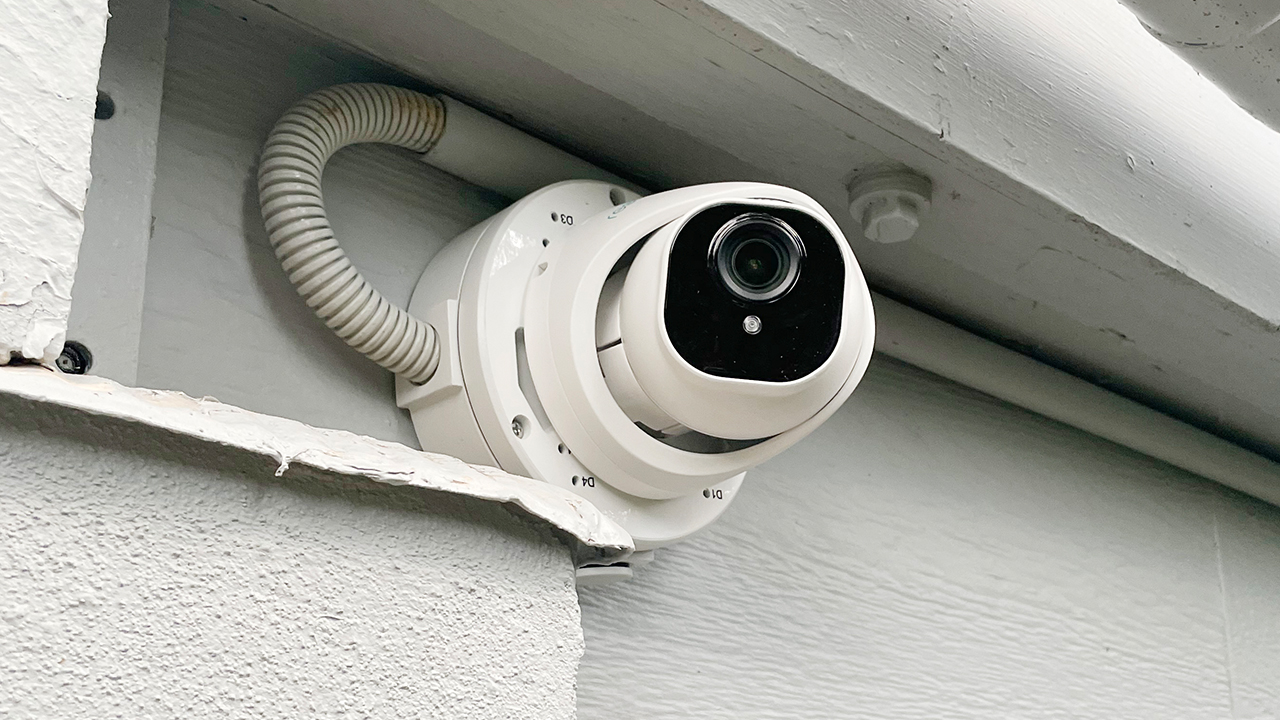
UniFi Protect App & Remote Access
Insurance Savings with UniFi Cameras
Family & Business Safety with UniFi
How We Install & Configure Your UniFi Protect System
Our goal is for you to have a professional, unobtrusive UniFi camera setup that delivers 24/7 peace of mind. No messy cables, no guesswork, and no complicated user manuals. Every Ubiquiti installation is configured and explained by our friendly experts.
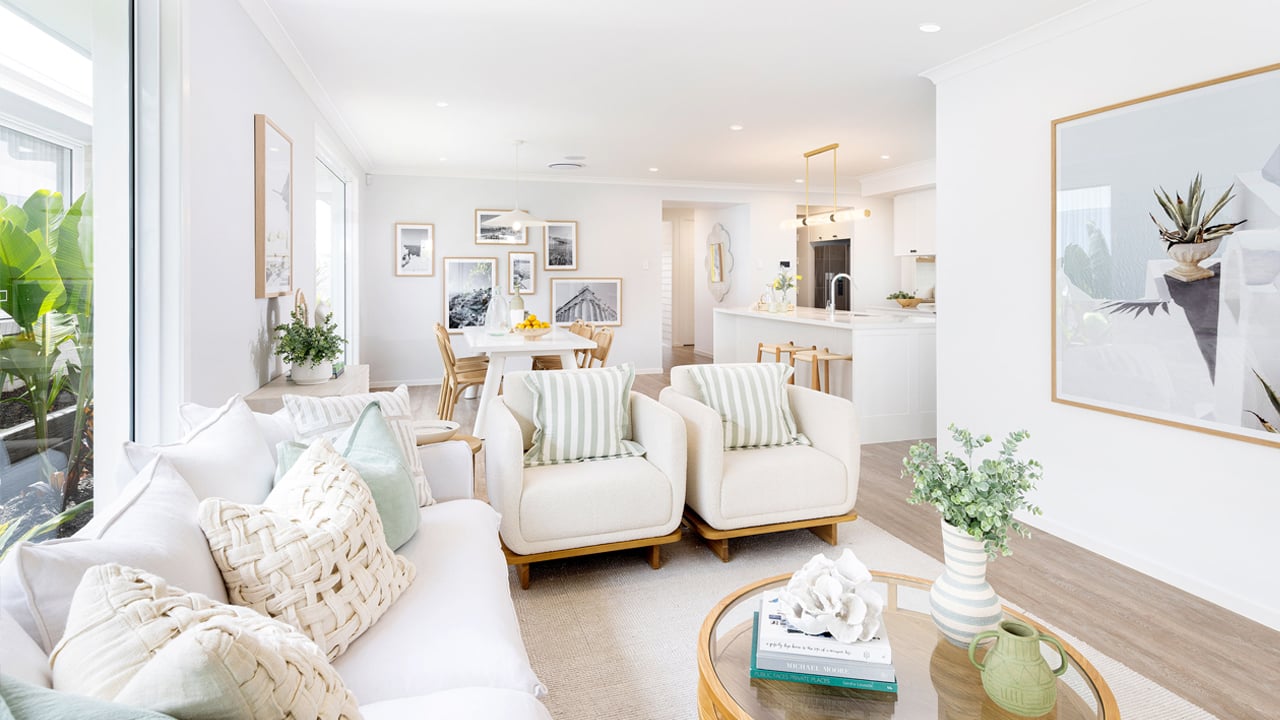
Initial Consultation & Quote
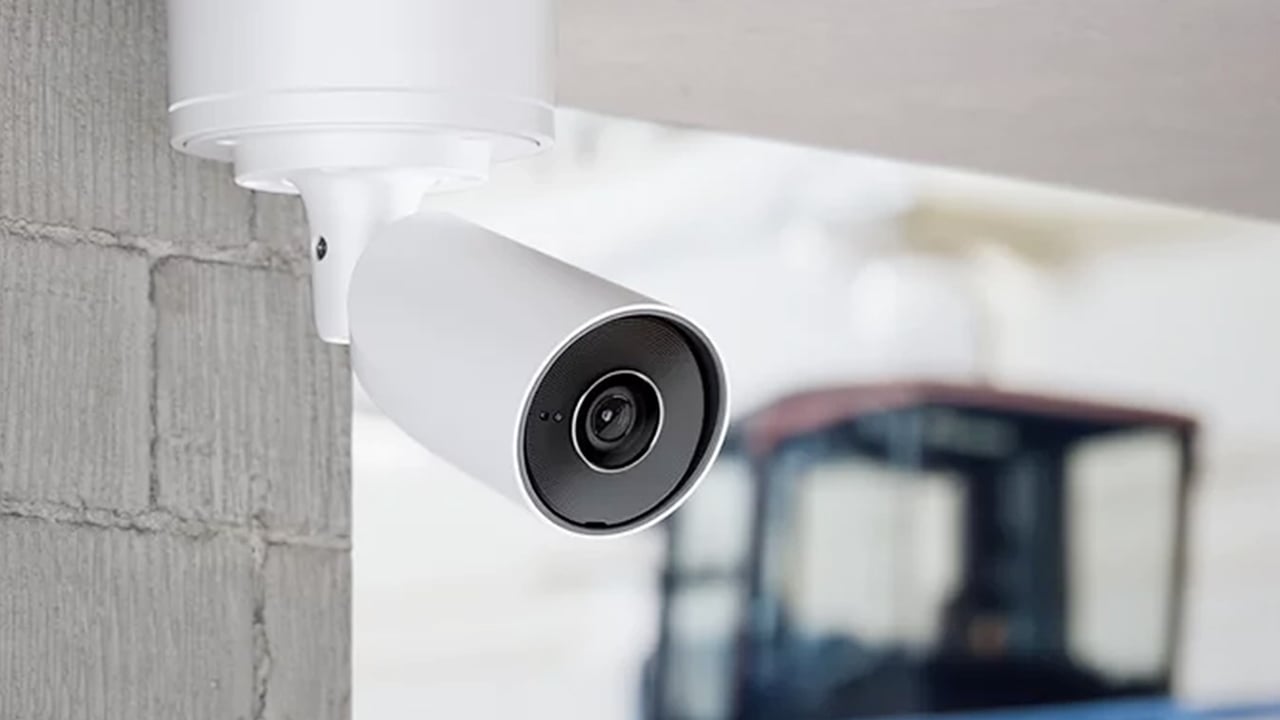
Professional UniFi Installation
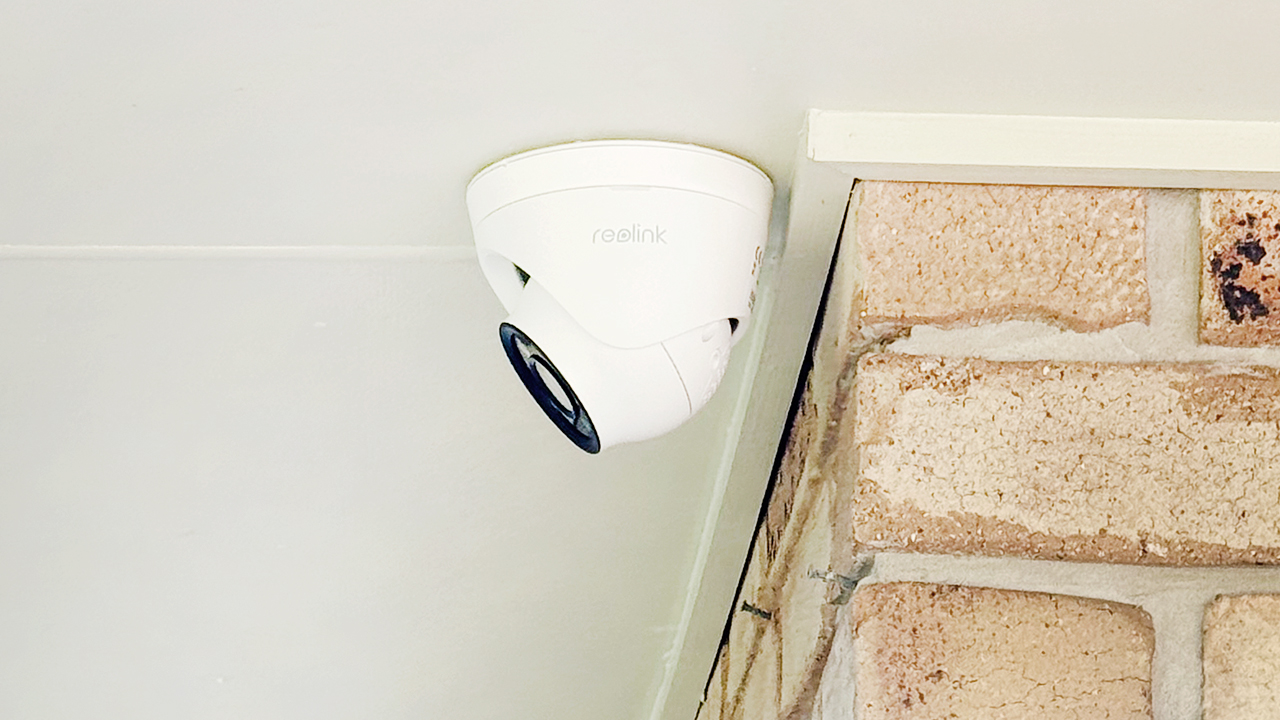
UniFi System Setup & Optimisation
Cleaning & Double-Checking
UniFi Protect App Training & Hand-Over